
Here is how to Format and Reuse a Locked Byju's SD Card
How to remove the stubborn temporary write-protection lock on Byju's SD cards and save perfectly good hardware from becoming e-waste.
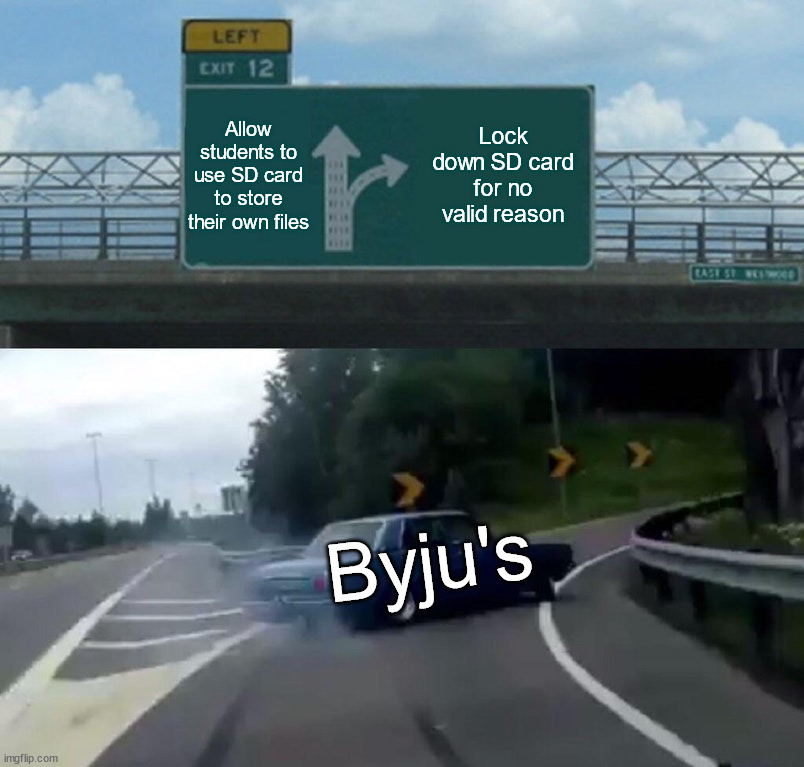
Byju's was a massive Indian edtech company that used to ship out "personalized" learning packages to millions of students. These care packages included a tablet, some merch, and a bunch of SD cards loaded with educational content. By design, these cards were heavily write-protected, meaning you couldn't store your own data on them even after finishing the course. By the end of the program, students were left with decently specced SD cards that were completely unusable.
The point of this blog is how we can essentially remove that write protection and turn these cards into a usable storage medium rather than letting them become electronic waste.
A Pretty Simple Fix
If you were to use a normal disk manager in Windows or a phone to format it, it would fail or just outright reboot your mobile device.
When analyzing the SD card in an SD card managing tool known as sdtool, it showed me that the SD card had a temporary write protection on it. So using the same tool, I was able to remove that temporary lock. To check if it had worked, I ran the command to check the SD card properties and it had indeed removed that temporary lock.
My next step was to unmount any partitions of the SD card, as having it mounted may cause some problems with the OS and our operations. Next, I tried to wipe any existing filesystem signatures for two reasons: one, to check if the SD card accepts any write operations now, and two, to also remove any residual filesystem metadata to make sure they don't cause problems in the next steps. The output showed that it was able to erase those bytes.
I then tried to write 500 MiB of zeros to the beginning sectors of the card. Writing to this card also helped me ensure that the old filesystem metadata was properly overwritten, as they are normally stored in this part of the SD card. To my surprise, this command also completed successfully, which means I was able to write data to the SD card without any errors—which it previously did not allow me to do.
Now that the card can be written to and it is no longer locked behind a temporary write protection, using a disk management utility to format the card will just throw a partition layout error on most systems. This happens because we had wiped the filesystem metadata in our previous steps. To fix this, we now just need to create a new partition table so that our system understands how to actually use this SD card and map its partitions to store new data on it. There is a native tool to do this on Linux called fdisk, and after a few setup commands in that tool, we can open our disk management utility and then select the SD card, click the format partition again, and this time it should successfully complete—making you the owner of an SD card which was previously locked down.
Taking Back Control
This section covers the exact steps and commands you need, plus what the outputs should look like, to get your own Byju’s SD card freed from the lock.
( Just a heads up: Newer Byju’s SD cards might use different protections such as permanent write protection, but it’s definitely worth trying this method first. This procedure was developed based on the cards that reported "Write protection state: Temporary" when checked with sdtool. It may not work for cards with permanent write protection or physically failing flash memory. )
There are some prerequisites you will need before starting the process:
Prerequisites:
A laptop running Linux as the primary OS or in a virtual machine. (I tried this on Linux Mint, but other distributions such as Ubuntu should also work the same way).
Install Virtual Box from this website : --> https://www.virtualbox.org/wiki/Downloads
An inbuilt SD card slot reader. The laptop should contain an SD card slot with an inbuilt reader—external readers may cause problems to arise. (Again, if using a virtual machine, you will need to pass the SD card to the virtual machine after inserting it in the slot.)
Your Linux system will need to have the following tools installed:
SDTool Clone and compile sdtool using the following commands:
git clone https://github.com/BertoldVdb/sdtool.git
cd sdtool
make
If running make gives an error such as "make: command not found", you likely do not have the required build tools installed. Install them using the command below based on your Linux Distro:
Ubuntu / Debian / Kali Linux:
sudo apt update sudo apt install build-essential
Fedora / RHEL / CentOS:
sudo dnf groupinstall "Development Tools"
Alternatively, to install only the minimum required packages: sudo dnf install make gcc
Arch Linux:
sudo pacman -S base-devel
Filesystem and Disk Utilities The following utilities are required:
mkfs.vfat (provided by the dosfstools package)
wipefs
fdisk (usually provided by the util-linux package)
Install them using your distribution's package manager:
Ubuntu / Debian / Kali Linux:
sudo apt update sudo apt install dosfstools util-linux
Fedora / RHEL:
sudo dnf install dosfstools util-linux
Arch Linux:
sudo pacman -S dosfstools util-linux
Graphical Disk Management Utility The final step of this guide uses a graphical disk management application to perform the last format operation. Examples include:
Linux Mint / GNOME: Disks (gnome-disk-utility)
KDE Plasma: KDE Partition Manager
Most desktop Linux distributions already include one of these utilities by default.
Important Note: If in any steps below you get this error "sdtool not found", you may have accidentally exited the sdtool folder. You can go back into it using the command: cd sdtool. All further commands need to be executed from this folder itself to avoid any tool errors.
Step 1: Find Your SD Card Name
Before running any tool, you need to find out exactly what your SD card is named in the system. Pop open a terminal and run:
lsblk
Your output should look something like this:
sda 8:0 0 931.5G 0 disk
├─sda1 8:1 0 600M 0 part /boot/efi
├─sda2 8:2 0 1G 0 part /boot
└─sda3 8:3 0 929.9G 0 part /home
mmcblk0 179:0 0 29.7G 0 disk
└─mmcblk0p1 179:1 0 29.7G 0 part
Look through the list for your SD card (you can usually spot it by matching the size, like 16G or 32G). It will look something like mmcblk0 or a name close to that.
Crucial Note: Make absolutely sure you get this name right. If you copy a command using the wrong drive name later on, you could accidentally wipe your main OS drive. For the rest of this guide, I'll be using mmcblk0 as the example.
Step 2: Check the Current Write Protection Status
Now that you know the name, you need to check what kind of lock you are actually dealing with. Run:
sudo ./sdtool /dev/mmcblk0 status
(Note: In this command and further ones, type your device name in this format: /dev/your-sdcard-name)
Example output:
[+] Found RCA for /dev/mmcblk0: AAAA.
[+] Card CSD: 400E000B5B590000EDC87F800A40506F.
[+] Write protection state: Temporary.
If it shows Temporary, you are good to go. Continue with the next steps.
Step 3: Remove the Temporary Lock
Now for the actual magic phrase. We use sdtool to disable the write protection on the card. Run this command:
sudo ./sdtool /dev/mmcblk0 unlock
Result:
Write protection state: Off
This step is what unlocks writing capability.
Step 4: Unmount Any Existing Partitions
Before going any further, make sure to unmount any partitions on the SD card. Doing this will avoid any issues between our OS and the following operations we will run on the SD card.
sudo umount /dev/mmcblk0p*
If a partition wasn't even mounted to begin with, it will just tell you "umount: /dev/mmcblk0p1: not mounted". Don't worry about it, that is completely normal.
Step 5: Remove Existing Filesystem Signatures
Now we want to wipe out any existing filesystem signatures. We do this for two reasons: one, to check if the SD card actually accepts any write operations now, and two, to clear out any residual filesystem metadata so it doesn't cause problems in the next steps. So run:
sudo wipefs -a /dev/mmcblk0
Example output:
/dev/mmcblk0: 8 bytes were erased at offset 0x00000052 (vfat): 46 41 54 33 32 20 20 20
/dev/mmcblk0: 1 byte was erased at offset 0x00000000 (vfat): eb
/dev/mmcblk0: 2 bytes were erased at offset 0x000001fe (vfat): 55 aa
The output showing it erased those bytes means it successfully worked.
Step 6: Overwrite the Beginning of the Card
Now, try to write 500 MiB of zeros to the beginning sectors of the card. Writing to the card like this ensures that the old filesystem metadata is properly overwritten, since they are normally stored in this specific part of the SD card, and allows you to confirm the card is accepting our write operations. Run:
sudo dd if=/dev/zero of=/dev/mmcblk0 bs=10M count=50 status=progress sync
Running sync ensures that all the data is fully flushed to the card hardware. When this command completes successfully without any errors, it proves you can successfully write data to the SD card again—which it previously did not allow you to do.
Step 7: Create a New Partition Table
Since we wiped out the old filesystem metadata in our previous steps, trying to use a standard disk utility right now will just throw a partition layout error on most systems. To fix this, we need to create a new partition table so our system understands how to actually use this SD card and map its partitions so that we can use it as a normal storage device.
Now follow the next commands very carefully. Launch fdisk using the command below to get started:
sudo fdisk /dev/mmcblk0
Inside fdisk, punch in these setup commands individually.
For example, type o then press Enter, then type n then press Enter, and follow the same process with the remaining letters listed below:
'o' – Creates a new DOS (MBR) partition table
'n'– Creates a new partition
'p'– Makes it a primary partition
'1' – Uses partition number 1
(Press Enter twice without entering anything to use the default first and last sectors)
't' – Changes the partition type
'c' – Sets the type to W95 FAT32 (LBA)
'w' – Writes changes to disk and exits
Expected output:
The partition table has been altered.
Calling ioctl() to re-read partition table.
Syncing disks.
Step 8: Format the Card Using the Disk Management Utility
Now that the stressful work is done, open up your graphical disk management utility (usually by just searching "disk" in the app menu). Depending on what desktop environment you use, it could be:
Linux Mint / GNOME: Disks
KDE Plasma: KDE Partition Manager
Carefully select the SD card, click the format partition option again, and make sure to select FAT32 for maximum compatibility. Run the format, and this time it should successfully complete—making you the proud owner of your own SD card that was previously completely locked down.
Verification:
Once it's done formatting, safely eject the card, plug it back in, and test it out to make sure everything functions normally. Confirm that you can:
Copy files to the card
Delete files from the card
Create new folders
Reinsert the card without it automatically reverting back to a read-only state
You can also run a final status check with sdtool to verify (This step is not needed but is added just to allow you to verify our previous steps worked). Run:
sudo ./sdtool /dev/mmcblk0 status
A successful recovery will report back exactly what we want:
[+] Write protection state: Off.